
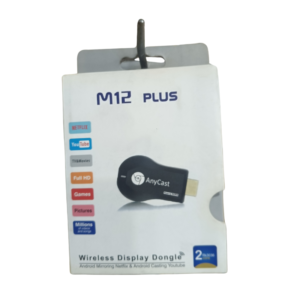

Mirror Your Phone or Laptop to the TV Without Cables
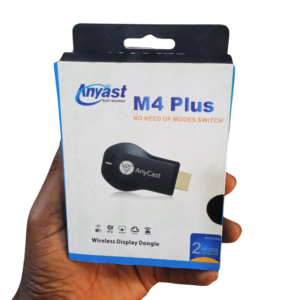
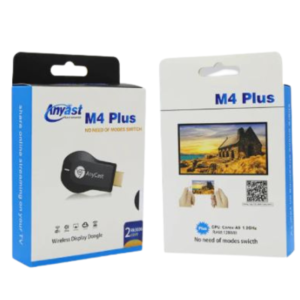
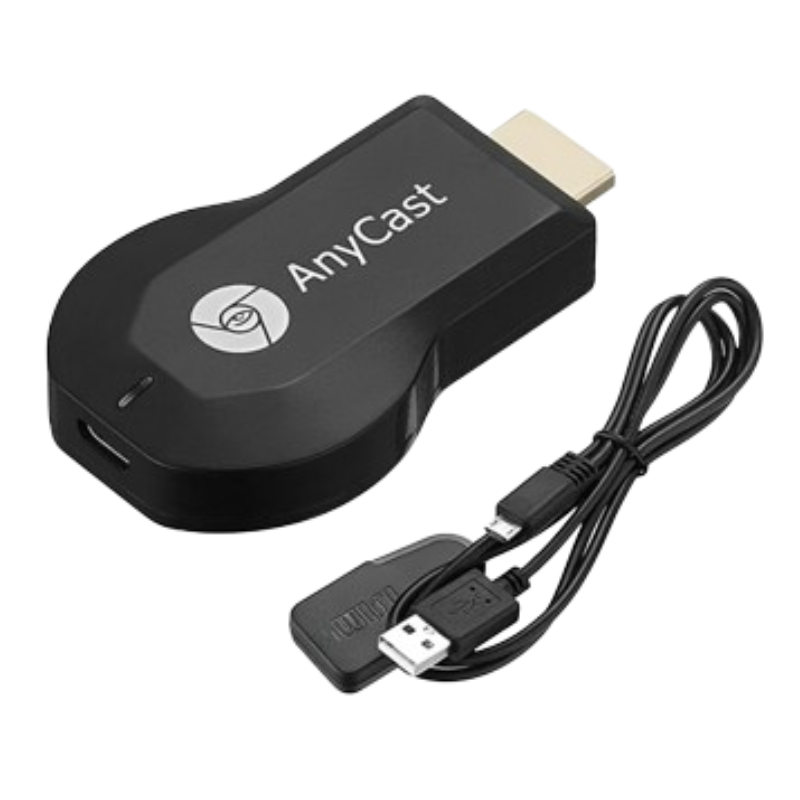
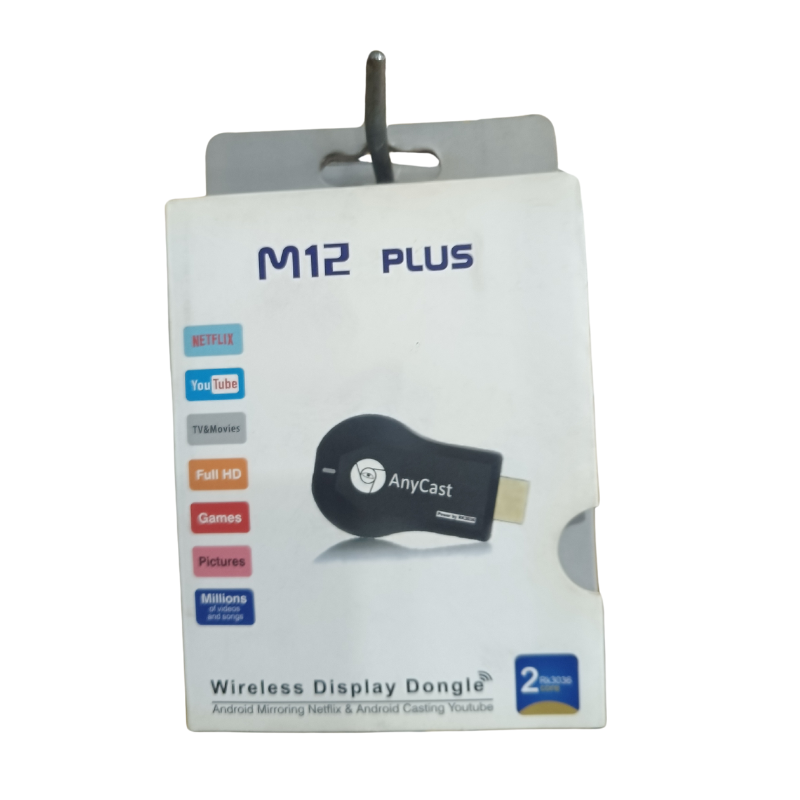
Showing photos, videos and presentations on a big screen should not need a cable. The Anycast M12 Plus wireless display dongle plugs into the HDMI port of a TV or projector and receives a wireless picture from compatible phones, tablets and laptops.
Wireless display dongles are popular in homes, classrooms and meeting rooms. The M12 Plus is described as a plus model, so ask our team to confirm the supported mirroring standards, such as Miracast, AirPlay or DLNA.
Key Features and Benefits
- Wireless mirroring. Show your screen on a TV or projector.
- HDMI plug-in. Fits the HDMI port of most TVs and projectors.
- Works with many devices. Phones, tablets and laptops, depending on standards.
- Cable-free presenting. Move around the room while you present.
- Compact. Small and easy to carry.
Where It Works Best
It suits families who want to watch videos on a big screen, teachers and presenters who share slides, churches and meeting rooms and anyone who wants to cast photos and videos from a phone.
Buying Guide: What to Check First
Ask our team which standards the dongle supports, since iPhones, Android phones and Windows laptops use different ones. It also needs a power source, usually a USB port on the TV or a USB adapter. Check that your TV has a free HDMI port.
Installation and Setup Tips
Plug the dongle into the TV's HDMI port and power it through USB. Select the HDMI input on the TV, connect your phone to the dongle's WiFi or network and start screen mirroring. Keep the dongle ventilated.
Miracast, AirPlay and DLNA Explained
Miracast mirrors Android and Windows screens, AirPlay mirrors Apple screens and DLNA streams media from a device to a TV. A good dongle supports one or more of these. Check which ones match your phone or laptop before you buy, and ask us if you are unsure.
Getting a Smooth Wireless Picture
Keep the dongle and your device close, avoid thick walls and reduce WiFi interference. If the picture lags, move closer or lower the resolution. A stable connection gives smoother video.
Presenting Wirelessly
Test your dongle before a meeting, and keep a backup HDMI cable. Close private apps and notifications while mirroring. A little preparation makes presentations smoother and more professional.
Setting Up Wireless Casting in a Classroom
In a classroom, plug the dongle into the projector or TV and power it from a USB adapter. Display the connection name on the screen so teachers can find it easily, and test with a laptop and a phone before the lesson. Keep a spare HDMI cable in case wireless fails. Once set up, teachers can walk around the room and share slides, videos and photos without cables.
Frequently Asked Questions
Does it work with iPhone?
Ask us which standards it supports.
Does it work with Android?
Many Android phones support screen casting. Ask us.
Does it need power?
Yes, usually via USB.
Does it need internet?
Mirroring often works without internet, but some modes need it.
Buy Anycast M12 Plus Wireless Display Dongle From Nosik Mart
Go wireless with the Anycast M12 Plus. Add it to your cart today, or contact the Nosik Mart team for availability, delivery options and help choosing the right setup.